Logo

React Loading Skeleton

Make beautiful, animated loading skeletons that automatically adapt to your app.

Open on CodeSandbox
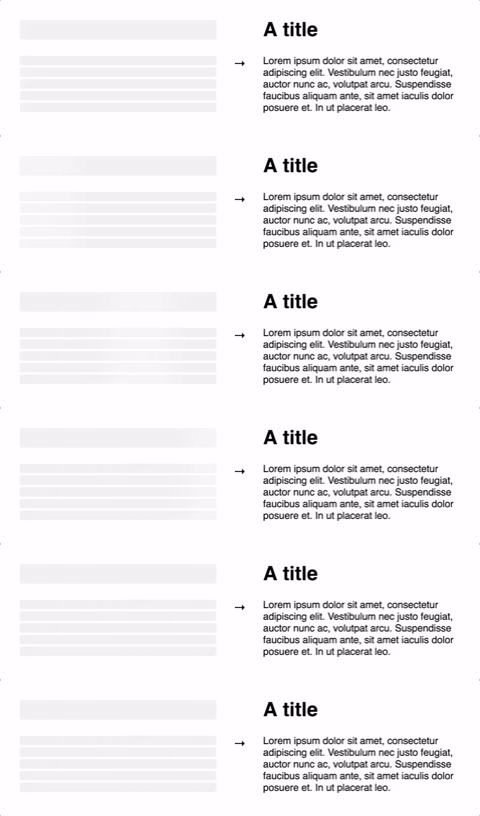
Gif of the skeleton in action
Learn about the [changes in version 3](https://github.com/dvtng/react-loading-skeleton/releases/tag/v3.0.0), or view the [v2 documentation](https://github.com/dvtng/react-loading-skeleton/tree/v2#readme). ## Basic Usage Install via one of: ```bash yarn add react-loading-skeleton npm install react-loading-skeleton ``` ```tsx import Skeleton from 'react-loading-skeleton' import 'react-loading-skeleton/dist/skeleton.css' // Simple, single-line loading skeleton // Five-line loading skeleton ``` ## Principles ### Adapts to the styles you have defined The `Skeleton` component should be used directly in your components in place of content that is loading. While other libraries require you to meticulously craft a skeleton screen that matches the font size, line height, and margins of your content, the `Skeleton` component is automatically sized to the correct dimensions. For example: ```tsx function BlogPost(props) { return (

{props.title || }

{props.body || }
); } ``` ...will produce correctly-sized skeletons for the heading and body without any further configuration. This ensures the loading state remains up-to-date with any changes to your layout or typography. ### Don't make dedicated skeleton screens Instead, make components with _built-in_ skeleton states. This approach is beneficial because: 1. It keeps styles in sync. 2. Components should represent all possible states — loading included. 3. It allows for more flexible loading patterns. In the blog post example above, it's possible to have the title load before the body, while having both pieces of content show loading skeletons at the right time. ## Theming Customize individual skeletons with props, or render a `SkeletonTheme` to style all skeletons below it in the React hierarchy: ```tsx import Skeleton, { SkeletonTheme } from 'react-loading-skeleton'; return (

); ``` ## Props Reference ### `Skeleton` only
Prop Description Default
count?: number The number of lines of skeletons to render. If count is a decimal number like 3.5, three full skeletons and one half-width skeleton will be rendered. 1
wrapper?: React.FunctionComponent
<PropsWithChildren<unknown>>
A custom wrapper component that goes around the individual skeleton elements.
circle?: boolean Makes the skeleton circular by setting border-radius to 50%. false
className?: string A custom class name for the individual skeleton elements which is used alongside the default class, react-loading-skeleton.
containerClassName?: string A custom class name for the <span> that wraps the individual skeleton elements.
containerTestId?: string A string that is added to the container element as a data-testid attribute. Use it with screen.getByTestId('...') from React Testing Library.
style?: React.CSSProperties This is an escape hatch for advanced use cases and is not the preferred way to style the skeleton. Props (e.g. width, borderRadius) take priority over this style object.
### `Skeleton` and `SkeletonTheme`
Prop Description Default
baseColor?: string The background color of the skeleton. #ebebeb
highlightColor?: string The highlight color in the skeleton animation. #f5f5f5
width?: string | number The width of the skeleton. 100%
height?: string | number The height of each skeleton line. The font size
borderRadius?: string | number The border radius of the skeleton. 0.25rem
inline?: boolean By default, a <br /> is inserted after each skeleton so that each skeleton gets its own line. When inline is true, no line breaks are inserted. false
duration?: number The length of the animation in seconds. 1.5
direction?: 'ltr' | 'rtl' The direction of the animation, either left-to-right or right-to-left. 'ltr'
enableAnimation?: boolean Whether the animation should play. The skeleton will be a solid color when this is false. You could use this prop to stop the animation if an error occurs. true
customHighlightBackground?: string Allows you to override the background-image property of the highlight element, enabling you to fully customize the gradient. See example below. undefined
## Examples ### Custom Wrapper There are two ways to wrap a skeleton in a container: ```tsx function Box({ children }: PropsWithChildren) { return (
{children}
); } // Method 1: Use the wrapper prop const wrapped1 = ; // Method 2: Do it "the normal way" const wrapped2 = ( ); ``` ### Custom Highlight Background You may want to make the gradient used in the highlight element narrower or wider. To do this, you can set the `customHighlightBackground` prop. Here's an example of a narrow highlight: ```tsx ``` **If you use this prop, the `baseColor` and `highlightColor` props are ignored,** but you can still reference their corresponding CSS variables as shown in the above example. ![Custom highlight background example](assets/custom-highlight-background.png) ## Troubleshooting ### The skeleton width is 0 when the parent has `display: flex`! In the example below, the width of the skeleton will be 0: ```tsx
``` This happens because the skeleton has no intrinsic width. You can fix it by applying `flex: 1` to the skeleton container via the `containerClassName` prop. For example, if you are using Tailwind, your code would look like this: ```tsx
``` ### The height of my container is off by a few pixels! In the example below, the height of the `
` will be slightly larger than 30 even though the `react-loading-skeleton` element is exactly 30px. ```tsx
``` This is a consequence of how `line-height` works in CSS. If you need the `
` to be exactly 30px tall, set its `line-height` to 1. [See here](https://github.com/dvtng/react-loading-skeleton/issues/23#issuecomment-939231878) for more details. ## Contributing Contributions are welcome! See `CONTRIBUTING.md` to get started. ## Acknowledgements Our logo is based off an image from [Font Awesome](https://fontawesome.com/license/free). Thanks!